Add notes and maintain a repair order
Use the repair-order Overview to keep the visit accurate while work is open. Record information in the place that matches who should see it.
Review the repair order before editing
-
Open the repair order.
-
Select Overview.
-
Confirm the customer, vehicle, visit type, advisor, technician, promised time, appointment, mileage, and reasons for visit.
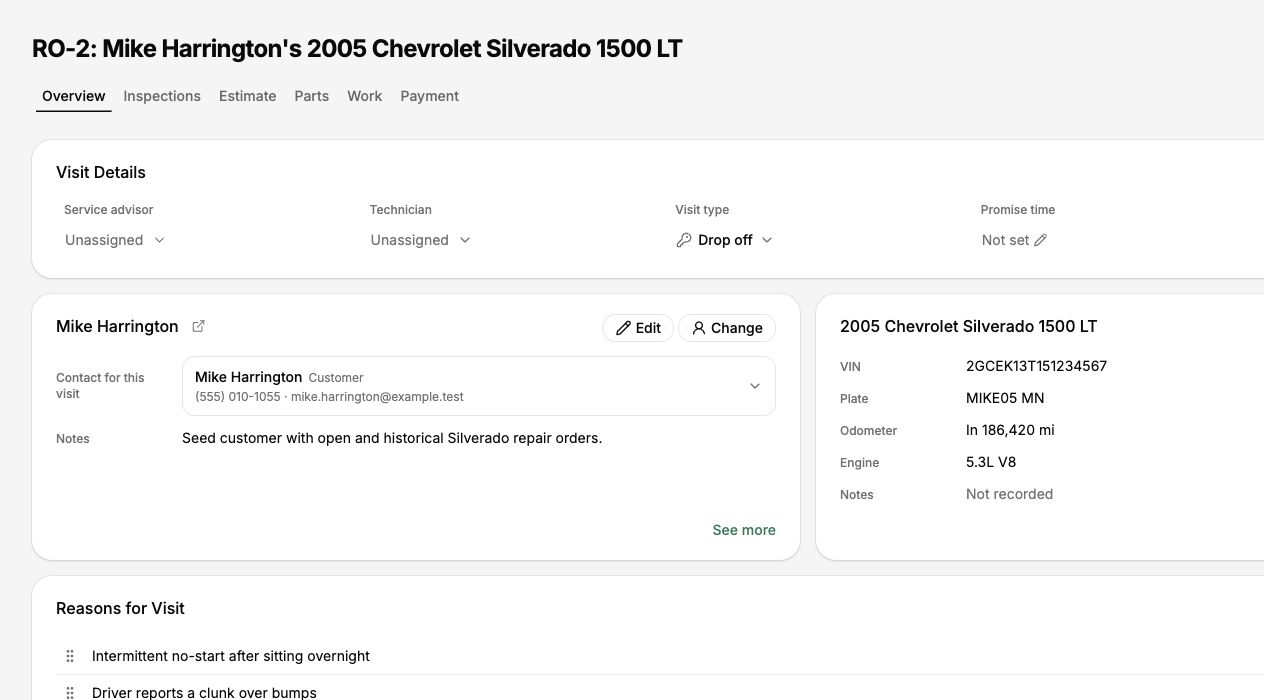
Review the customer, vehicle, visit details, assignments, mileage, and reasons for visit.
-
Correct incomplete visit information before relying on it elsewhere.
Choose the right place for a note
| Information | Where to record it |
|---|---|
| What the customer asked the shop to address | Reason for Visit or customer concern |
| Shop-only visit context | Repair-order or service internal notes |
| What the technician observed | Technician Finding or inspection result |
| Information the customer should read | Customer-facing service notes or findings |
| A future follow-up action | Task |
Do not put private shop discussion in customer-facing findings or service notes.
Update visit information
- Use the available Edit or Change action beside the information that needs correction.
- Update only the field that is wrong or missing.
- Save the change.
- Confirm the repair order, Workflow card, and customer-facing information now show the intended value.
- Advisor and technician assignments
- Visit type and promised time
- Odometer in and out
- Reasons for visit
- Customer or vehicle when the wrong record was selected
Review repair-order activity
-
Scroll to Activity on Overview.
-
Search when you need to find a specific change or event.

Use Activity to find important changes recorded on the repair order.
-
Review the action, time, and person shown.
-
Use the detailed authorization or payment history when the question concerns those records.
Activity is a useful visit record, but it is not a complete audit of every field edit in BayEngine.
Correct the customer or vehicle
- Confirm the correct replacement record already exists.
- Use Change beside the customer or vehicle.
- Search and choose the correct record.
- Review the estimate, authorizations, messages, appointment, and vehicle history after the change.
Do not change ownership merely to correct a duplicate. Use the customer and vehicle duplicate guides when more than one record represents the same person or vehicle.
Before leaving the repair order
- The customer and vehicle are correct.
- Visit details and promised time are current.
- Reasons for visit match what the shop agreed to inspect or repair.
- Internal notes are not exposed in customer-facing text.
- Assignments, service progress, Workflow stage, and payment information reflect current work.