Understand what customers see in the Customer Portal
The Customer Portal gives a customer one mobile-friendly page for a vehicle visit. The customer can follow status, review sent work, authorize or decline services, view inspections, and open the finalized invoice.
Send the portal link
-
Open the estimate, inspection, or finalized invoice you want the customer to review.
-
Select Send.
-
Choose the correct contact and delivery method, or copy the portal link.
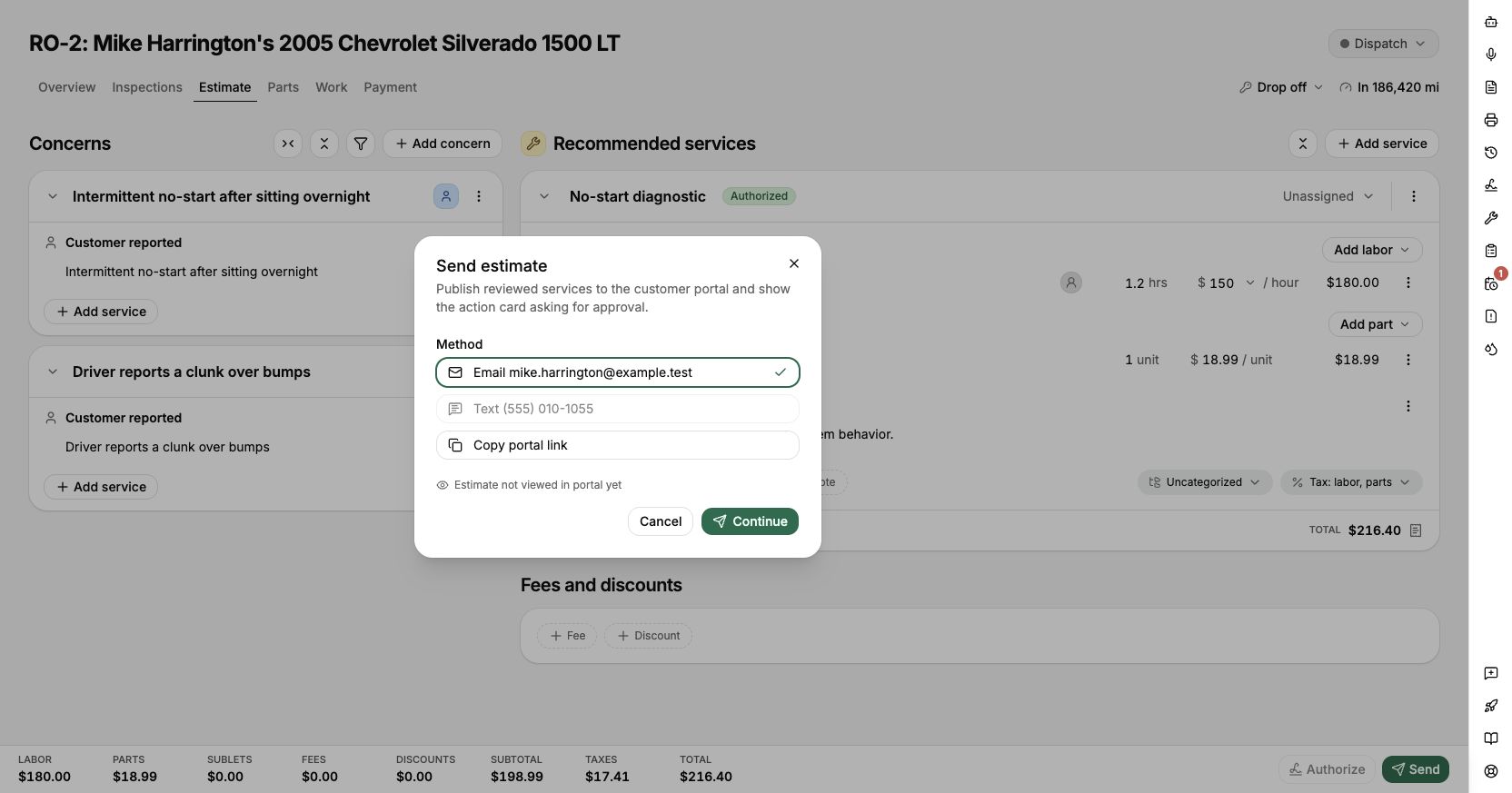
Choose the correct recipient and delivery method before sending the portal link.
-
Review the message, then send it.
One visit keeps the same portal link when an estimate becomes a repair order. A new visit gets a new link.
Protect the link
- The customer does not need a BayEngine account or password.
- Anyone with the link can open that visit, so send it only to the intended contact.
- Do not post the link publicly or paste it into an unrelated customer conversation.
- If a repair order is voided, the portal stops showing the visit.
Understand the portal home page
The page uses your shop branding and shows the customer, vehicle, visit number, current status, and the next useful action. The status follows work recorded in BayEngine, including authorization, service progress, workflow stage, invoice, and pickup information.
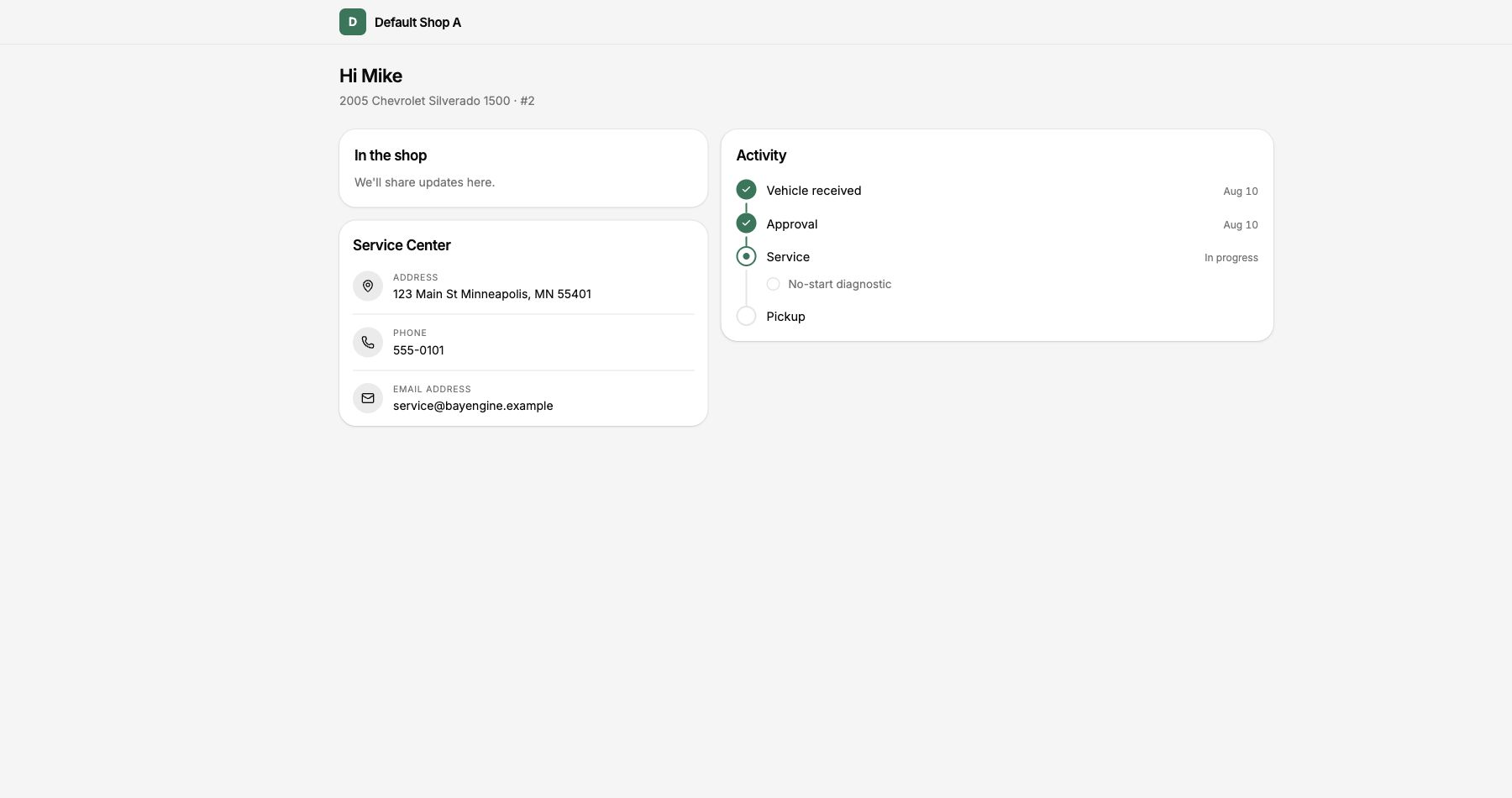
Keep Workflow stages, service progress, promised time, and pickup information current so the portal reflects what is actually happening.
How customers approve or decline work
- Only reviewed and sent services appear in the portal.
- The customer chooses the services they want and confirms the decision.
- Required information, name, signature, and terms appear when configured for the authorization.
- Submitting the decision records what was authorized and declined.
- Previously authorized work stays locked unless a price increase requires a revised authorization.
What customers can review
| Portal area | What the customer sees |
|---|---|
| Visit status | The current shop status and next action |
| Timeline | Important visit milestones without internal notes or routine edits |
| Inspection | Customer-visible results, findings, photos, and video |
| Estimate | Sent services, pricing, and authorization choices |
| Invoice | The finalized invoice, payments recorded, and remaining balance |
Current portal limits
- Online payment is not available yet; customers pay the shop directly.
- The portal covers one visit and does not provide a customer account or cross-visit history.
- Customers cannot edit their contact information or reschedule the current visit from the portal.
- There is no chat inside the portal. Text and call actions use the customer's normal phone apps.
Review portal settings
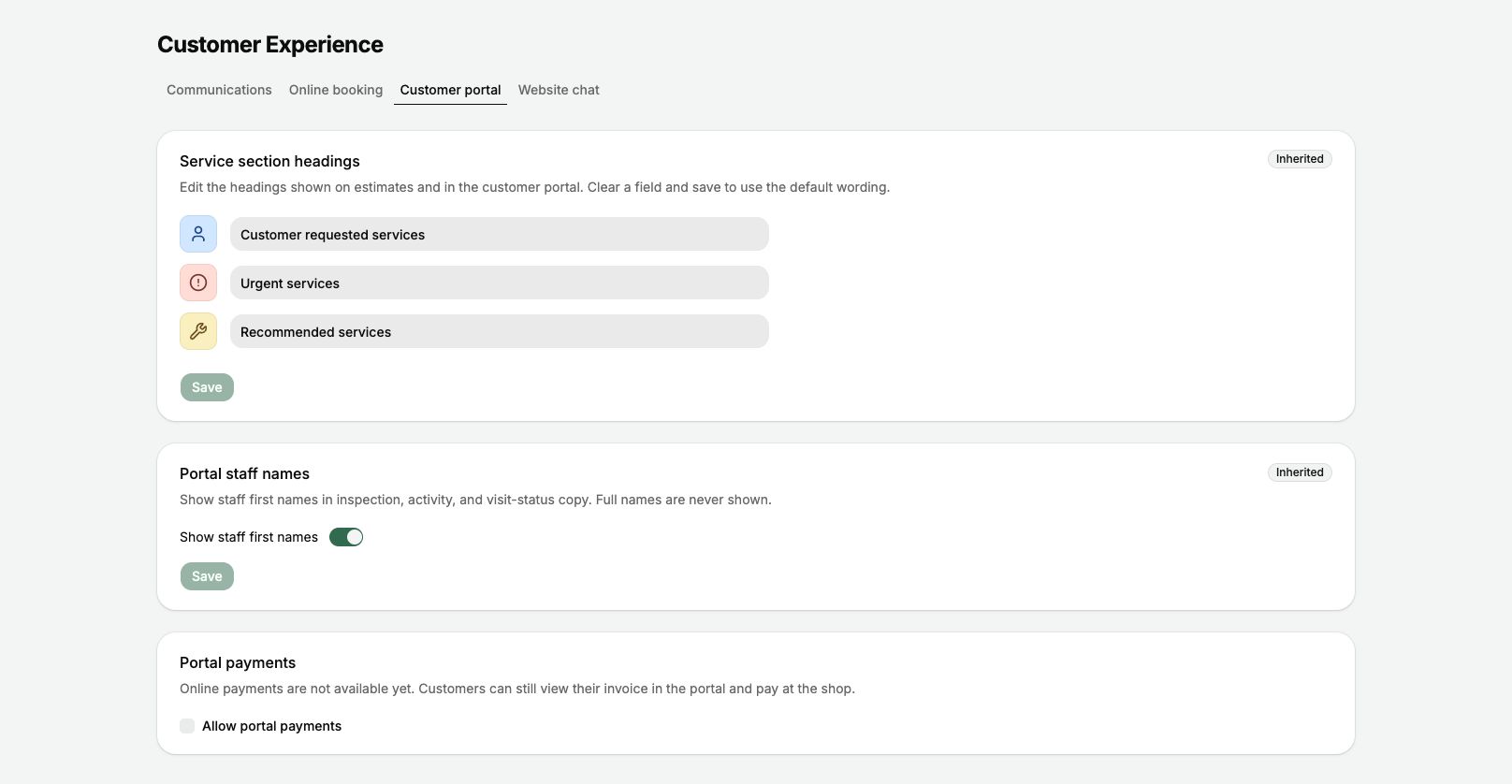
Open Configurations → Customer Experience → Customer portal to review service headings, staff-name behavior, and available portal settings.